T Mobile Home Internet Speed: Plans, Tests and Tips
T mobile home internet speed is the first thing most people ask about before they switch. It makes sense. Nobody wants to trade a cable bill for a connection that buffers during a movie or drops in the middle of a video call. The short answer is that T-Mobile Home Internet runs on the company’s 5G network, and most households see download speeds that handle streaming, browsing, and working from home without much fuss. The longer answer matters more, because the speed you actually get depends on where you live, where the gateway sits in your home, and how many devices are pulling on the connection at once.
This guide walks through what to expect, what the plans look like, how to test your speed properly, and what to do when the numbers come back lower than you hoped. No jargon for its own sake, no made-up test results. Just the practical picture, so you can decide whether the service fits your household — and get the best out of it if you already have it.
What T Mobile Home Internet Speed Actually Means
T-Mobile Home Internet is a fixed wireless service. Instead of a cable or fibre line coming into your house, a small gateway device picks up a 5G signal from a nearby cell tower and turns it into Wi-Fi for your home. That is the whole idea, and it explains almost everything about the speed: it behaves like a mobile connection, because it is one.
When people talk about t mobile home internet speed, they usually mean three numbers. Download speed is how fast data comes to you — the number that decides whether a 4K stream loads quickly or a big file downloads in minutes. Upload speed is how fast data leaves your home, which matters for video calls, cloud backups, and sending large files. Latency, measured in milliseconds, is the delay before data starts moving. Low latency makes video calls feel natural and online games feel responsive. High latency makes everything feel a beat behind, even when the download number looks fine.
Most households care most about download speed, and that is fair. Streaming, browsing, and software updates all lean on it. But upload speed and latency deserve a look too, especially if two people in the house work remotely or someone plays games online in the evening.
Typical Download Speeds You Can Expect
T-Mobile describes typical download speeds for its Home Internet service in broad ranges rather than a single guaranteed number, and that honesty is worth noting. In areas with strong 5G coverage, customers commonly see downloads in the region of 70 to 250 Mbps, with some homes seeing more when conditions are ideal. In weaker signal areas, speeds can fall well below that range. Uploads are typically much slower than downloads, often in the range of roughly 10 to 30 Mbps, though that also varies by location.
Those ranges are not promises. They are a realistic picture of what a 5G fixed wireless connection does in ordinary homes. A house a few streets from a tower with a clear line of sight will usually do better than a house in a low-lying spot behind a hill, even on the same plan. That is not a flaw in the service so much as the nature of wireless internet. Cable and fibre do not care much about hills. A 5G signal does.
It helps to put those numbers in context. A single 4K video stream generally needs around 25 Mbps to run smoothly. A video call in high definition needs roughly 5 to 10 Mbps. A household streaming on two televisions while someone browses on a laptop and a phone backs up photos is still well inside the typical range on a good day. The trouble starts when the signal is weak or the network is busy, and that is where placement and timing come in — both covered later in this guide.
Why Your Speed Will Not Match Your Neighbour’s
Two homes on the same street can get very different results from the same service, and the reasons are usually physical. Distance from the tower is the biggest one. The 5G signal weakens with distance, and it weakens faster when it has to pass through walls, trees, and other buildings. The type of 5G signal matters too. Low-band 5G travels far and passes through walls well, but it is slower. Mid-band 5G, which T-Mobile has built out widely, is the sweet spot for home internet: faster than low-band, with better range than the very fast millimetre-wave 5G that only works over short distances outdoors.
Your gateway’s position inside the house matters just as much. A gateway tucked in a basement corner behind a television will struggle. The same device on a windowsill on the upper floor, facing the nearest tower, can perform noticeably better. The gateway’s own signal meter, shown in the T-Mobile Internet app, gives a rough guide — more bars, better signal — but the real test is always a speed test run from a device connected to your Wi-Fi.
Time of day plays a part as well. Mobile networks slow down when many people use them at once, and the evening hours are the busiest. If your speeds dip at 8 p.m. and recover after midnight, congestion is the likely cause rather than a fault with your gateway. Weather can have a small effect too, though it is usually minor compared with distance, obstacles, and congestion.
T-Mobile Home Internet Plans at a Glance
T-Mobile has kept its Home Internet plans simple. There are usually two or three options, and the difference between them comes down to a few extras rather than a different speed tier. That is an important point: unlike cable providers, T-Mobile does not generally sell a 100 Mbps plan and a 1 Gbps plan side by side. The speed you get depends on your location and signal, not on which plan you pick.
The standard plan is the core offer. It includes the gateway, unlimited data, and no annual contract. There is no data cap in the traditional sense, though T-Mobile’s terms note that heavy users may see slower speeds during busy times. That is network management, and it is worth knowing about before you sign up, but for most households it never becomes an issue.
The higher plan, often marketed with a “Plus” label, adds extras such as a mesh Wi-Fi point for larger homes and a few streaming or security perks. The underlying internet speed is the same. If your house is large or has thick walls, the mesh point alone can be worth it, because it spreads the Wi-Fi signal further. If you live in a small flat, the standard plan is usually enough.
Prices change over time and vary with promotions, so check T-Mobile’s current pricing before you decide. What has stayed consistent is the structure: no equipment rental fee for the gateway, no installation appointment, and no long contract. You plug the gateway in, place it well, and the service starts. That simplicity is a genuine selling point, and it is one of the reasons the service has grown so quickly.
What You Get in the Box
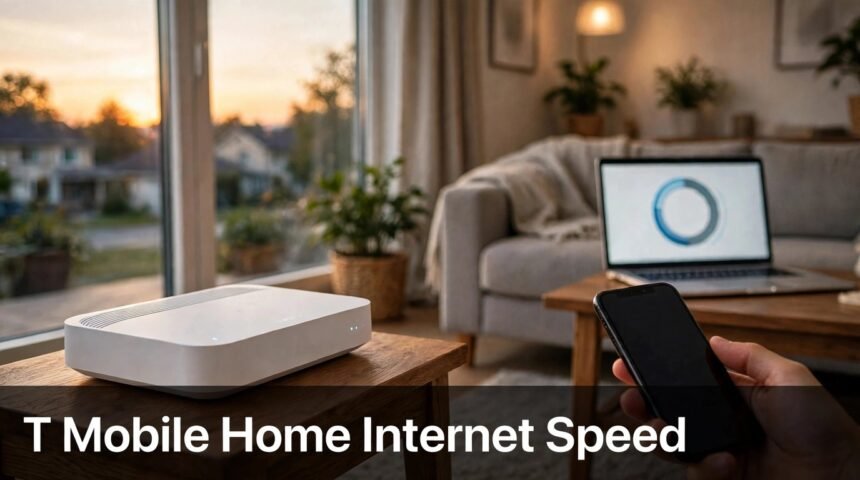
The gateway is a compact white box with a small display or a set of indicator lights, depending on the model. It plugs into a power socket and connects to the mobile network on its own. There is no separate modem and router to wire together. The gateway is both. It broadcasts a Wi-Fi network with a name and password printed on the device, and you can change both from the app.
Setup takes most people under fifteen minutes. The app walks you through finding the best spot in your home for the gateway, using the signal reading as you move it around. The advice is simple: start near a window, on the highest floor you use, away from thick walls and large metal objects. Test the signal in two or three spots before you settle. That ten minutes of moving the box around is the single highest-value thing you can do for your speed.
How to Test Your T Mobile Home Internet Speed Properly
A speed test sounds simple, but a sloppy test gives a misleading number. If you want a result you can trust, run the test the right way.
First, use a wired connection if you can. Plug a laptop directly into the gateway with an ethernet cable and run the test from there. That number is the speed coming into your home. Then run the same test over Wi-Fi from the room where you actually use the internet. The gap between the two numbers tells you how much speed your Wi-Fi is losing on the way to your devices. If the wired number is good and the Wi-Fi number is poor, the problem is your Wi-Fi coverage, not the 5G signal.
Second, close everything else first. Pause downloads, cloud backups, and streaming on other devices. A speed test shares the connection with whatever else is running, so a backup uploading photos in the background will drag the result down and make the service look slower than it is.
Third, test more than once. Run three tests at different times of day — morning, afternoon, and evening — and note the results. A single test at 8 p.m. tells you about the busiest hour, not about the service as a whole. A pattern across the day tells you far more. If mornings are fast and evenings are slow, congestion is the story. If every test is slow, the signal or the gateway position is the story.
Which Speed Test to Use
Any well-known speed test will do, and the best-known ones agree closely enough for household purposes. The T-Mobile Internet app has a built-in test, which is handy because it tests the connection the gateway itself sees. Independent tests from a browser give you a second opinion. Use the same test each time you compare results, because different tests use different servers and can return slightly different numbers. Consistency matters more than the brand of the test.
Pay attention to all three numbers the test reports. Download speed is the headline, but upload speed and latency tell you whether video calls and gaming will feel smooth. A download of 150 Mbps with latency of 80 milliseconds will feel worse on a video call than a download of 80 Mbps with latency of 25 milliseconds. The number on its own never tells the whole story.
What Counts as a Good Result
There is no single number that counts as good for every household. A fair way to judge it is by what you do. For a household that streams on one or two screens, browses, and makes video calls, downloads above 50 Mbps with steady latency will feel fine. For a household with four people streaming, gaming, and working from home at the same time, you will want comfortably more than that — ideally above 100 Mbps — with latency that stays low and steady.
If your results sit well below those levels, the rest of this guide is for you. Before you call support or consider switching, work through the fixes below. Most slow-speed complaints trace back to a handful of causes, and most of them are fixable in an afternoon.
| Household use | Download speed that usually feels fine | What to watch |
|---|---|---|
| One person, browsing and streaming | 25–50 Mbps | Latency on video calls |
| Couple, two streams plus browsing | 50–100 Mbps | Evening slowdowns |
| Family of four, streaming and gaming | 100–200 Mbps | Upload speed for calls and gaming |
| Heavy use, 4K on several screens | 150 Mbps and above | Steady speeds, not just peak numbers |
| Working from home with video calls | 50 Mbps and above | Upload speed and low latency |
What Slows T Mobile Home Internet Speed Down
Slow speeds have causes, and most of them are visible once you know where to look. Here are the ones that come up most often.
Signal strength is first. The gateway needs a decent 5G signal, and anything between it and the tower weakens that signal. Thick concrete walls, metal roofing, energy-efficient windows with metallic coatings, and even a large aquarium can all get in the way. A gateway in a basement or an interior room without windows is fighting an uphill battle.
Congestion is second. T-Mobile’s network is shared, and home internet traffic sits behind mobile phone traffic in priority during busy periods. That is part of the deal with fixed wireless. At quiet times you may see the full speed your signal allows. At peak times you may see less. If your speeds are fine at noon and poor at 8 p.m., congestion is almost certainly the cause.
Wi-Fi problems are third, and they are often mistaken for internet problems. An old router setting, a crowded Wi-Fi channel in a block of flats, or a device connected to the slower 2.4 GHz band instead of the faster 5 GHz band can all cut your speed in half. The gateway broadcasts both bands, and many devices pick the 2.4 GHz band because its signal reaches further, even though it is slower. Checking which band your device is on takes a minute and can explain a lot.
Too many devices is fourth. A modern home can have thirty or more connected devices without anyone noticing: phones, laptops, televisions, smart speakers, cameras, doorbells, and appliances. Most of them use almost no data. But a security camera uploading video to the cloud, a games console downloading an update, or a phone backing up a photo library can quietly eat a large share of the connection. The app shows which devices are connected, and that list is worth a look when speeds dip for no obvious reason.
Finally, the gateway itself can be the problem. Like any piece of electronics, it benefits from a restart now and then. A gateway that has been running for weeks without a break can slow down. Firmware updates can also change behaviour. If your speeds dropped suddenly after months of good service, a restart is the first thing to try.
How to Make T Mobile Home Internet Faster
Start with placement, because it costs nothing and it usually helps the most. Move the gateway to a window on the upper floor, facing the direction of the nearest tower. If you do not know which direction that is, try two or three windows and run a speed test from each spot. Leave the gateway in place for a few minutes at each spot before you test, so it can settle on the best signal. Small moves can make a surprising difference — even a metre to the left, away from a metal filing cabinet, can lift the signal.
Keep the gateway out in the open. Do not hide it inside a cupboard, behind the television, or on the floor behind the sofa. It needs a clear path to the window and some airflow around it. Keep it away from other electronics that can interfere with it, such as microwave ovens, baby monitors, and large speakers. A high shelf near a window is often the best spot in the house.
Restart the gateway once a week or so, or whenever speeds drop without explanation. Unplug it, wait thirty seconds, and plug it back in. Give it a couple of minutes to reconnect and settle before you test again. It is a simple step, and it fixes more problems than people expect.
Split your devices sensibly between the two Wi-Fi bands. Put televisions, laptops, and games consoles on the 5 GHz band when they are in the same room as the gateway or close to it, because that band is faster. Put phones, smart speakers, and devices far from the gateway on the 2.4 GHz band, because that band reaches further. If the gateway offers a mesh point, use it for the far end of a large house rather than expecting one box to cover everything.
Update the gateway’s firmware when the app offers an update. Updates can improve stability and performance, and they sometimes fix connection bugs. Do not ignore them for months. The same goes for the app itself — keep it updated so the signal readings and device list stay accurate.
When a Mesh System Helps — and When It Does Not
A mesh Wi-Fi system spreads your Wi-Fi across a large home using extra points that talk to each other. It helps when the problem is Wi-Fi coverage: the gateway is fast, but the bedroom at the far end of the house gets a weak Wi-Fi signal. It does not help when the problem is the 5G signal itself. If the gateway is only pulling 30 Mbps from the tower, no amount of mesh hardware will turn that into 150 Mbps. Fix the signal first. Add mesh second, only if the speed is good near the gateway and poor far away from it.
The same logic applies to Wi-Fi extenders. They can help in a large home, but a cheap extender that halves your speed is worse than no extender at all. If you buy one, get a model that matches the gateway’s Wi-Fi standard and place it halfway between the gateway and the dead spot, not inside the dead spot itself.
Managing Busy Evenings
If your speeds dip every evening, a few habits can soften the blow. Schedule large downloads, cloud backups, and games console updates for overnight or early morning, when the network is quiet. Pause automatic photo backups during video calls. If your television supports it, set streaming quality to match the screen — a 1080p stream uses far less data than a 4K stream, and on a smaller screen the difference is hard to spot.
None of this is a substitute for a good signal, but it stops your own devices from competing with each other at the worst time of day. In a busy household, that alone can be the difference between a stream that plays cleanly and one that stalls.
T Mobile Home Internet Speed for Streaming, Gaming, and Working From Home
Streaming is where most households notice speed first. A single high-definition stream needs only a few Mbps, so even a modest connection handles it. 4K is hungrier, and two 4K streams at once will show up any weakness in the connection. If your household streams in 4K on two televisions, you want a connection that holds above 50 Mbps in the evening, not just at noon. Test in the evening, when it matters, rather than trusting a morning result.
Gaming cares more about latency and stability than about raw download speed. Most online games need only a few Mbps, but they need that connection to respond quickly and consistently. Latency under 50 milliseconds feels fine for most games. Latency that jumps around — 30 milliseconds one moment, 150 the next — feels much worse than a steady 60. If gaming matters in your house, test latency specifically, and test it in the evening. A wired connection to the gateway will always beat Wi-Fi for gaming, so run an ethernet cable to the console or gaming PC if you can.
Working from home leans on upload speed. Video calls send your picture and voice upstream, and a slow upload makes you freeze or blur for everyone else on the call. If your upload speed sits below 10 Mbps, video calls can suffer, especially when someone else in the house is streaming at the same time. A wired connection helps here too, and so does asking other devices to pause their uploads during an important call.
How Many Devices Can It Handle?
There is no fixed limit, and the honest answer is that it depends on what those devices are doing. Thirty quiet devices — phones on standby, smart bulbs, a doorbell — barely register. Five busy devices — two 4K streams, a video call, a cloud backup, and a game download — can strain even a good connection. The gateway can handle a large number of connected devices, but the speed is shared between them. If the household is large, the practical step is to give the busiest devices the best connection: wired where possible, 5 GHz Wi-Fi where not, and close to the gateway.
T Mobile Home Internet Speed vs Cable and Fibre
It is worth comparing honestly, because fixed wireless is not the right choice for everyone. Fibre is the fastest and most consistent home internet available. It delivers high speeds in both directions, low latency, and almost no variation by time of day. If fibre is available at your address and you need the fastest possible connection — for example, if you upload large video files for work every day — fibre will beat fixed wireless.
Cable is the middle ground. It is usually faster than fixed wireless on downloads and more consistent in the evening, but its upload speeds are often much slower than its download speeds, and it comes with a contract and an installation visit. T-Mobile Home Internet wins on simplicity, price, and flexibility: no installation, no annual contract, and a gateway you can move around the house.
The trade-off is consistency. A cable or fibre connection gives you nearly the same speed at 8 p.m. as at 8 a.m. A fixed wireless connection varies more. For many households, that variation is acceptable, especially when the price is lower and there is no contract locking them in. For a household that needs guaranteed performance at all hours, it may not be. That is a fair judgement to make with open eyes, and it is why testing the service in your own home matters more than any review.
Common Problems and Quick Fixes
If the gateway shows no signal, check the obvious first: is it plugged in, is the power socket live, and has the gateway finished starting up? It can take a few minutes after a restart. If the app reports a weak signal, move the gateway to a different window and test again. If the Wi-Fi network has vanished from your devices, restart the gateway and check that the Wi-Fi name is still broadcasting.
If speeds are fine on one device and poor on another, the slow device is the problem, not the connection. Check whether it is on the 2.4 GHz band, whether it has a software update pending, and whether it is running a backup or download in the background. Restart the device and test again.
If the connection drops at the same time every day, look for a pattern. A neighbour’s device, a scheduled backup, or a smart appliance that uploads data on a timer can all cause a daily dip. The app’s device list will show what is connected when the drop happens.
If nothing helps, contact T-Mobile support and ask them to check the tower serving your address. Towers go down for maintenance, and new towers come online. Sometimes the answer is that your area is due for an upgrade, and sometimes the answer is that the service is not a good fit for your address. Either way, it is better to know than to keep restarting the gateway and hoping.
Is T Mobile Home Internet Speed Good Enough for You?
The honest answer depends on your household, not on a single number. If you stream on one or two screens, browse, and make video calls, and your address has a decent 5G signal, the service is very likely good enough — and the lack of a contract means you can try it without a long commitment. If you need rock-steady speeds at all hours, upload large files daily, or live somewhere with a weak signal, test carefully before you commit, and compare it with what cable or fibre offers at your address.
The best way to decide is to try it in your own home. Place the gateway well, run speed tests at different times of day, and use it the way you actually use the internet for a week or two. The numbers will tell you what you need to know. If they hold up in the evening, when the network is busiest, you have your answer. If they do not, you have learned something useful before spending a year on a contract elsewhere.
Frequently Asked Questions
What is a good T Mobile home internet speed?
A good result depends on your household, but downloads above 50 Mbps with steady latency will feel fine for streaming, browsing, and video calls for most homes. Families streaming on several screens or working from home will want more, ideally above 100 Mbps in the evening. Test at different times of day rather than trusting a single result.
Why is my T-Mobile Home Internet slow at night?
Evening is the busiest time on any mobile network. More people are streaming and browsing, and home internet traffic sits behind mobile phone traffic in priority. If mornings are fast and evenings are slow, congestion is the likely cause. Moving the gateway to a better spot can help, but some evening slowdown is normal for fixed wireless.
Where should I place the T-Mobile gateway for the best speed?
Near a window, on the upper floor, out in the open, and facing the nearest tower. Try two or three spots and run a speed test from each one. Keep the gateway away from thick walls, metal objects, and other electronics. Small moves can make a real difference.
Does T-Mobile Home Internet have a data cap?
The service is sold with unlimited data and no annual contract, though the terms note that heavy users may see slower speeds during busy times. For most households, that never becomes an issue. Check the current terms on T-Mobile’s site before you sign up, as details can change.
Can I use T-Mobile Home Internet for gaming?
Yes, for most games. Download speed is rarely the issue; latency and stability matter more. Use a wired connection to the gateway where you can, and test latency in the evening when the network is busy. Latency under 50 milliseconds feels fine for most games, but latency that jumps around will feel worse than a steady, slightly higher number.
How do I test my T-Mobile Home Internet speed?
Run a speed test from a device connected to your Wi-Fi, and if you can, run one from a laptop plugged into the gateway with an ethernet cable as well. Close other downloads and backups first, and test three times at different times of day. Compare the wired and Wi-Fi results to see whether the issue is the 5G signal or your Wi-Fi.
Is T-Mobile Home Internet faster than cable?
It can be faster than a basic cable plan in a strong-signal area, but cable is usually more consistent, especially in the evening. Fibre is faster and more consistent than both. Fixed wireless wins on simplicity, price, and the lack of a contract. The right choice depends on your address, your household, and how much consistency matters to you.
Conclusion
T mobile home internet speed is good enough for most households when the signal is decent and the gateway is placed well. Typical downloads handle streaming, browsing, and working from home, and the service’s simplicity — no installation, no annual contract, no data cap in the usual sense — makes it easy to try. The speed you get will vary with your address, the gateway’s position, and the time of day, so test it in your own home before you judge it. Place the gateway near a window, test at different times, and fix the Wi-Fi before you blame the 5G signal. Do that, and you will know within a week whether the service fits your household — and if it does, you will be getting the best out of it from the start.
Read Also: Neighbor’s Tree Damages Angela Bereola House (2026 Guide)